My phones kept losing internet. Not all of it, that would have been too easy. Google and YouTube worked, Reddit and Steam didn’t. Both a Samsung S20 Ultra and a Pixel 8 Pro, same symptom, seemingly at random. Forgetting the Wi-Fi network and re-adding it didn’t help.
The pattern only made sense once I looked at the IP addresses: every broken device
was sitting on 192.168.176.x. My LAN is 192.168.0.0/16, the DHCP pool ends at
192.168.0.250. Nobody in this house is supposed to hand out 176-anything.
And the half-broken internet? The 192.168.176.x leases pointed to a default
gateway 192.168.176.1 that doesn’t exist, so IPv4 was dead on arrival. IPv6
still came in via router advertisements, which don’t care what DHCP is doing.
Dual-stack services (Google) worked over v6, IPv4-only services (Reddit, Steam)
were gone. “Random sites don’t load” is what a dead IPv4 stack next to a healthy
IPv6 stack looks like from the couch.
So: something on my network was running a rogue DHCP server.
Ruling out the usual suspects
First guesses, all wrong:
- The gateway itself?
ping 192.168.176.1gets no reply, and the ARP entry stayedINCOMPLETE. A ping sweep across all of192.168.176.0/24found exactly one alive host: my own phone, victim, not culprit. - A second access point? There’s a GL.iNet Beryl AX in AP mode on the network. Its Wi-Fi was off the whole time. Innocent.
- Guest network on the main router? GL.iNet uses
192.168.9.1for guest networks by default.1 Doesn’t match.
Sniffing where the packets actually are
On Wi-Fi, your NIC only sees frames addressed to you. DHCP offers to other clients are typically unicast (the rogue’s offers here were), so sniffing from a desktop misses the interesting traffic. The place that sees everything is the router itself: it bridges every frame between wireless clients.
The main router is a GL.iNet GL-X3000, which is OpenWrt underneath, so:
ssh root@192.168.0.1 'opkg update; opkg install tcpdump; \
  tcpdump -i br-lan -e -n port 67 or port 68'
Then I toggled Wi-Fi on a phone to force a fresh DHCP handshake. Sixty seconds later I had the whole crime on tape:
30:ab:6a:xx:xx:xx > ff:ff:ff:ff:ff:ff ... 0.0.0.0.68 > 255.255.255.255.67: BOOTP/DHCP, Request
94:83:c4:xx:xx:xx > ff:ff:ff:ff:ff:ff ... 192.168.0.1.67 > 255.255.255.255.68: BOOTP/DHCP, Reply
e4:ae:e4:xx:xx:xx > 30:ab:6a:xx:xx:xx ... 192.168.0.110.67 > 192.168.176.243.68: BOOTP/DHCP, Reply
e4:ae:e4:xx:xx:xx > 30:ab:6a:xx:xx:xx ... 192.168.0.125.67 > 192.168.176.62.68:  BOOTP/DHCP, Reply
Read that from top to bottom:
- The phone broadcasts a DHCP discover.
- The legitimate router (
192.168.0.1) answers. - Two other devices answer too:
192.168.0.110and192.168.0.125, both offering addresses out of their own imaginary192.168.176.0/24pool.
Practically every discover in my captures got three offers. Whichever answer the client processed at the wrong moment won. That’s why the failures felt random, why some devices were fine and others weren’t, and why re-joining the Wi-Fi sometimes fixed things and sometimes made them worse. DHCP as deployed has no authentication2; the client just picks an offer, and first impressions count.
Naming the culprits
Both rogue servers shared an OUI, and nmap ships a vendor database:
$ grep -i '^E4AEE4' /usr/share/nmap/nmap-mac-prefixes
E4AEE4 Tuya Smart
Tuya. And the only Tuya hardware in this house: LSC Smart Connect smart plugs
from Action, these €6.95 ones (www.action.com).
Two of them, sitting on 192.168.0.110 and 192.168.0.125, quietly poisoning
DHCP for the whole network.
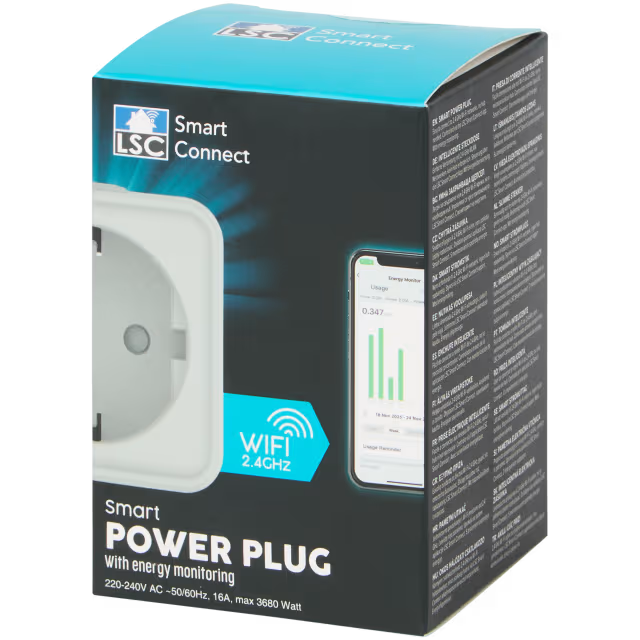
Exhibit A. Looks harmless.
Why 192.168.176.x of all things? When a Tuya device is in pairing mode it opens
a SmartLife-XXXX hotspot and plays router inside it, with itself as the
gateway.3 My working theory: the plugs got knocked into that pairing/fallback
state by a router reboot earlier that day, but kept answering DHCP on the
regular Wi-Fi interface instead of only on their own hotspot. I couldn’t find
official documentation of Tuya’s AP-mode subnet to back this up, so treat the
“why” as a hypothesis. The packet capture of the “what” stands on its own.
The fix
Boring but effective:
- Power-cycle both plugs. After the first one rebooted, its MAC disappeared from the capture. The second one actually calmed down on its own once the network was stable again, which fits the fallback-state theory.
- Re-toggle Wi-Fi on the affected devices so they pick up a clean lease.
- Verify with the same
tcpdumpone-liner: only192.168.0.1may answer.
For a permanent fix, pick one:
- Return the plugs. They’re €6.95 devices with firmware that can take down a network segment, and Action-brand firmware updates are rare. This is what I did.
- Flash them. In theory you can put Tasmota or similar open firmware on Tuya hardware and cut both the cloud and the buggy pairing logic out of the picture. I couldn’t be bothered for €6.95 plugs, and depending on the chip inside, newer Tuya devices may not be flashable at all.
Takeaways
- Dead IPv4 next to live IPv6 looks like “random sites are broken”. Check the device’s IP address before blaming the ISP, the DNS, or the phone.
- DHCP is a race with no referee. Any device on the broadcast domain can answer, and clients will believe it.
- Sniff on the bridge, not on a client. Wi-Fi NICs hide unicast traffic that isn’t yours; the router sees everything.
grepthe OUI before you theorize. Three characters of vendor prefix saved me hours of speculating about guest networks.- The cheapest device on your network sets its reliability ceiling. Two €6.95 smart plugs beat a €400 router at handing out leases, repeatedly, for a day.
The whole saga in six panels:
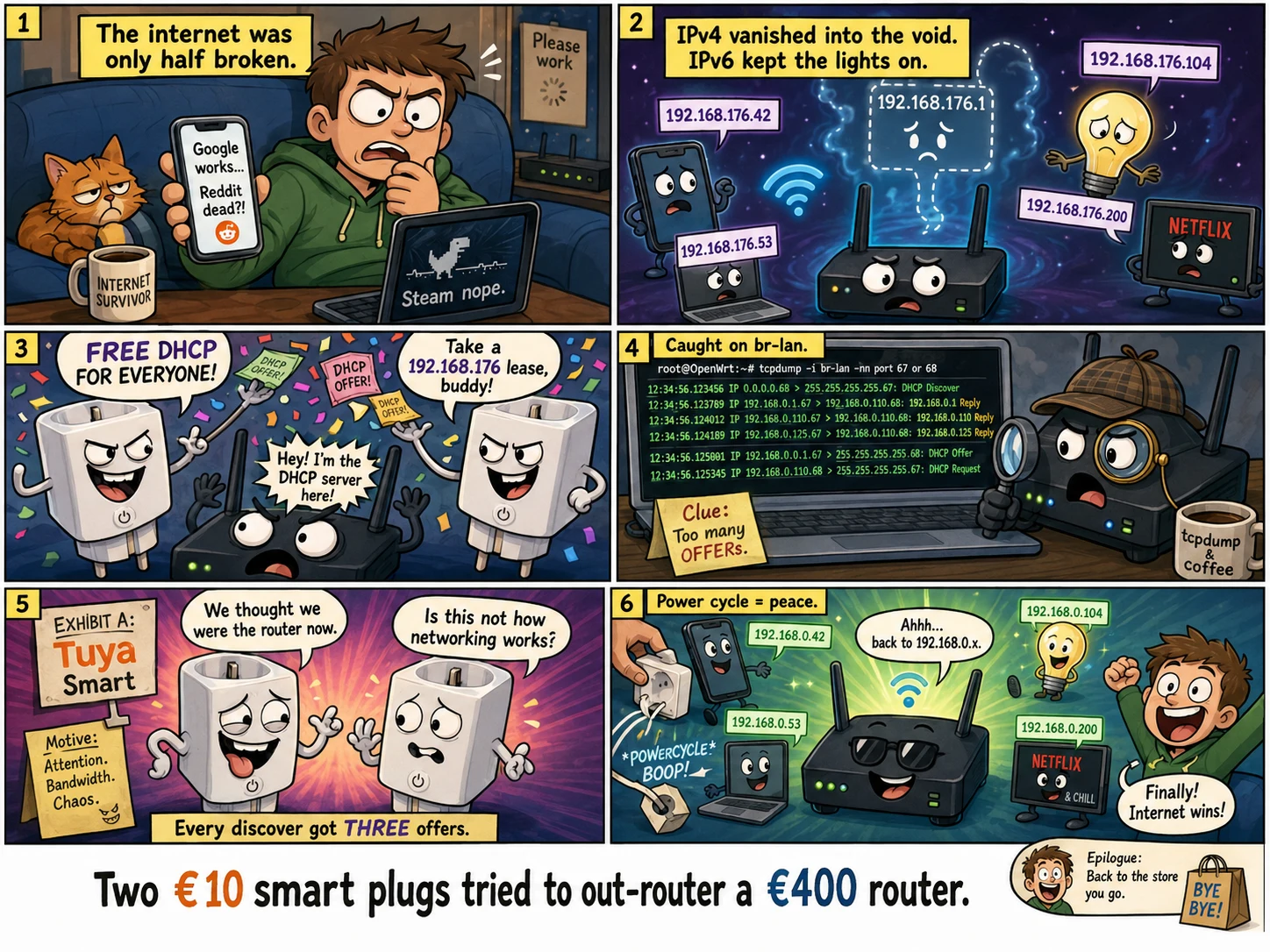
Any resemblance to actual smart plugs, living or returned, is fully intentional.
The GL.iNet interface guide states the default gateway of the Guest Network is
192.168.9.1with netmask255.255.255.0. Source: https://docs.gl-inet.com/router/en/4/interface_guide/guest_network/ ↩︎DHCP authentication exists on paper (RFC 3118, “Authentication for DHCP Messages”) but is essentially never deployed on consumer networks, so in practice any host on the broadcast domain can answer a discover. Source: https://datatracker.ietf.org/doc/html/rfc3118 ↩︎
Tuya’s AP pairing mode has the device open a hotspot (SSID
SmartLife-XXXXorSL-XXXX); the phone joins the device’s own network to exchange Wi-Fi credentials. Source: https://developer.tuya.com/en/docs/iot-device-dev/integrated_sdk_ap_commissioning_guide?id=Kb9p8ftgfkt96 ↩︎