Today I converted an Auerswald COMpact 5020 VoIP from an ISDN connection with 2 channels to VoIP with 8 channels. After some initial problems, the migration went fairly smoothly – not least thanks to Auerswald support.
By default the COMpact 5020 VoIP only supports 2 VoIP channels, but with an additional module this can be expanded to a total of 8 channels.
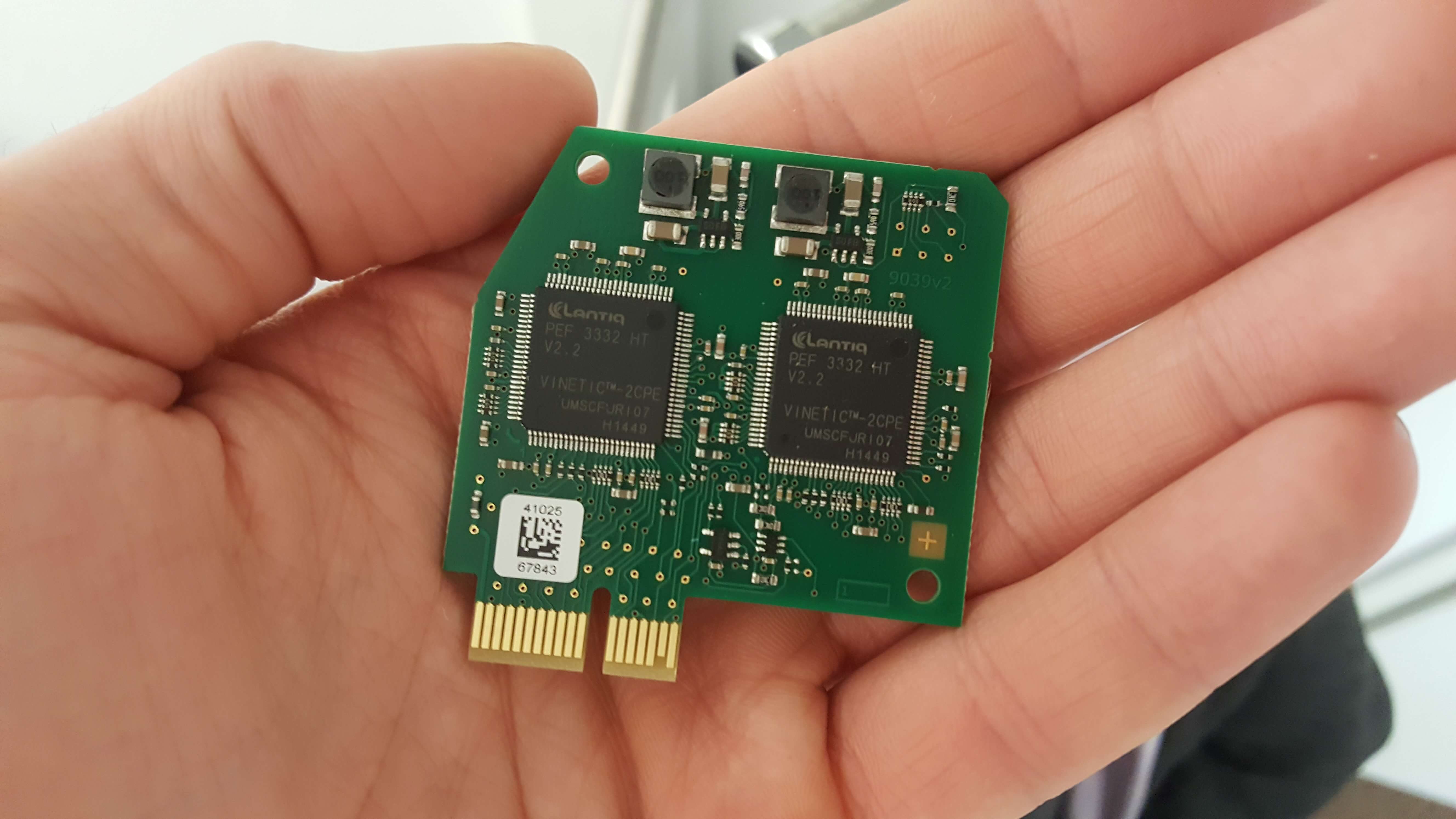
(COMpact 5020 VoIP additional module)
The existing configuration of the telephone system can be kept and does not need to be set up from scratch. Here’s how I went about the migration:
1. Update the firmware
If the firmware of the telephone system is <= 4.0, VoIP will not work properly. So first things first: download the latest firmware from the Auerswald website and update the system. A reboot is required after applying the update. Upgrading from 4.0 to 4.2K caused no issues with the existing configuration.
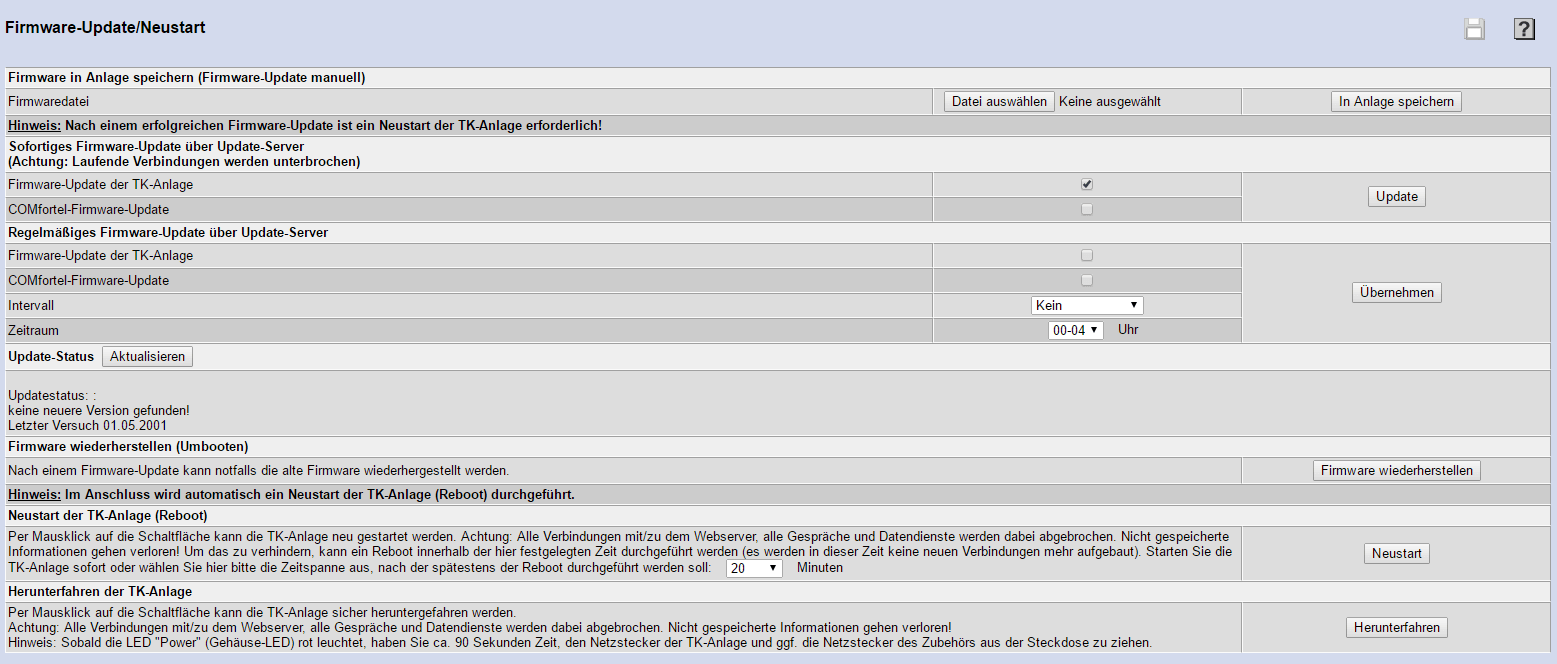
(Auerswald 5020 VoIP firmware update)
2. Set the external ISDN module to “free”
The title says it all – the currently used ISDN connection must be set to “free” in the corresponding module (likely the base module, or if there’s a system connection, across multiple modules). The internal modules can and should be left as they are.
3. Prepare the router
Auerswald recommends releasing the SIP-UDP port and the RTP port in the router for the telephone system, as connection problems can occur otherwise.
The ports used by the telephone system can be found in the web interface under Administration -> Monitoring -> Port Overview.
4. Import current VoIP provider template
According to Auerswald support, a current VoIP profile should be imported from their website, since it’s unknown whether the one already stored in the telephone system is still functional.
The templates can be found here: Auerswald COMpact 5020 VoIP Profiles (web.archive.org)
If the provider name is highlighted in blue (like 1und1 for example), make sure to click on it and follow Auerswald’s instructions for that specific provider.
5. Register VoIP accounts in the telephone system
By VoIP accounts I mean the individual VoIP phone numbers. These must be registered one by one with the profile of the respective VoIP provider. Best to follow the instructions from your provider / Auerswald regarding credentials and their formatting.
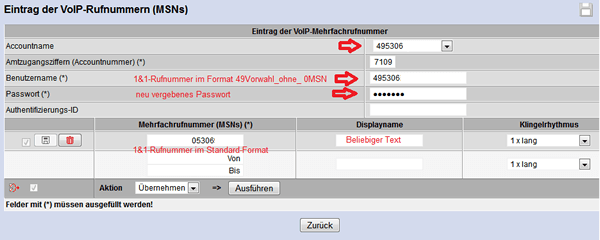
(Registering VoIP phone numbers)
The office access code has nothing to do with the internal phone numbers and can be assigned freely.
After registering the accounts, it’s a good idea to check their status under Administration -> Monitoring -> Status VoIP Accounts.

(VoIP phone numbers status)
6. Assign VoIP phone numbers
To assign the VoIP phone numbers to existing internal numbers, switch to the number distribution settings under the VoIP category. There you can assign the individual VoIP accounts to the internal numbers.
7. Set outbound phone number
I had the problem that after switching to VoIP, all phones were making outbound calls using a single number instead of their own. To fix this, navigate to COMset -> Internal Numbers -> Participant (Tn) -> Properties.
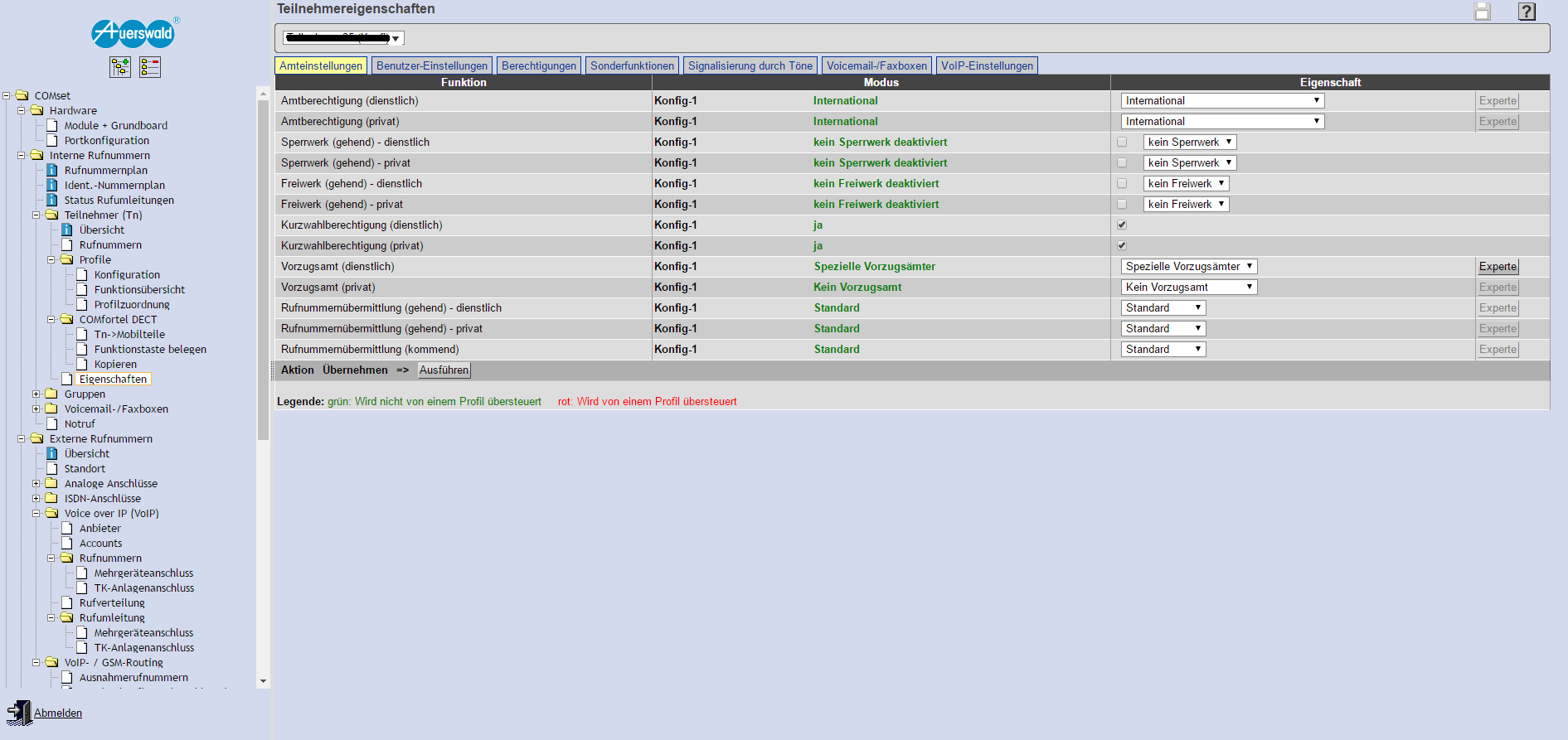
(Participant properties)
On this page you’ll find a dropdown menu in the top left where you can select all internal participants. Now a preferred office (business) must be set for each phone.
To do this, select “Special preferred offices” instead of “No preferred office” in the configuration dropdown, then click the “Expert” button next to it. If a popup asks whether you want to save the current changes, confirm with Yes.
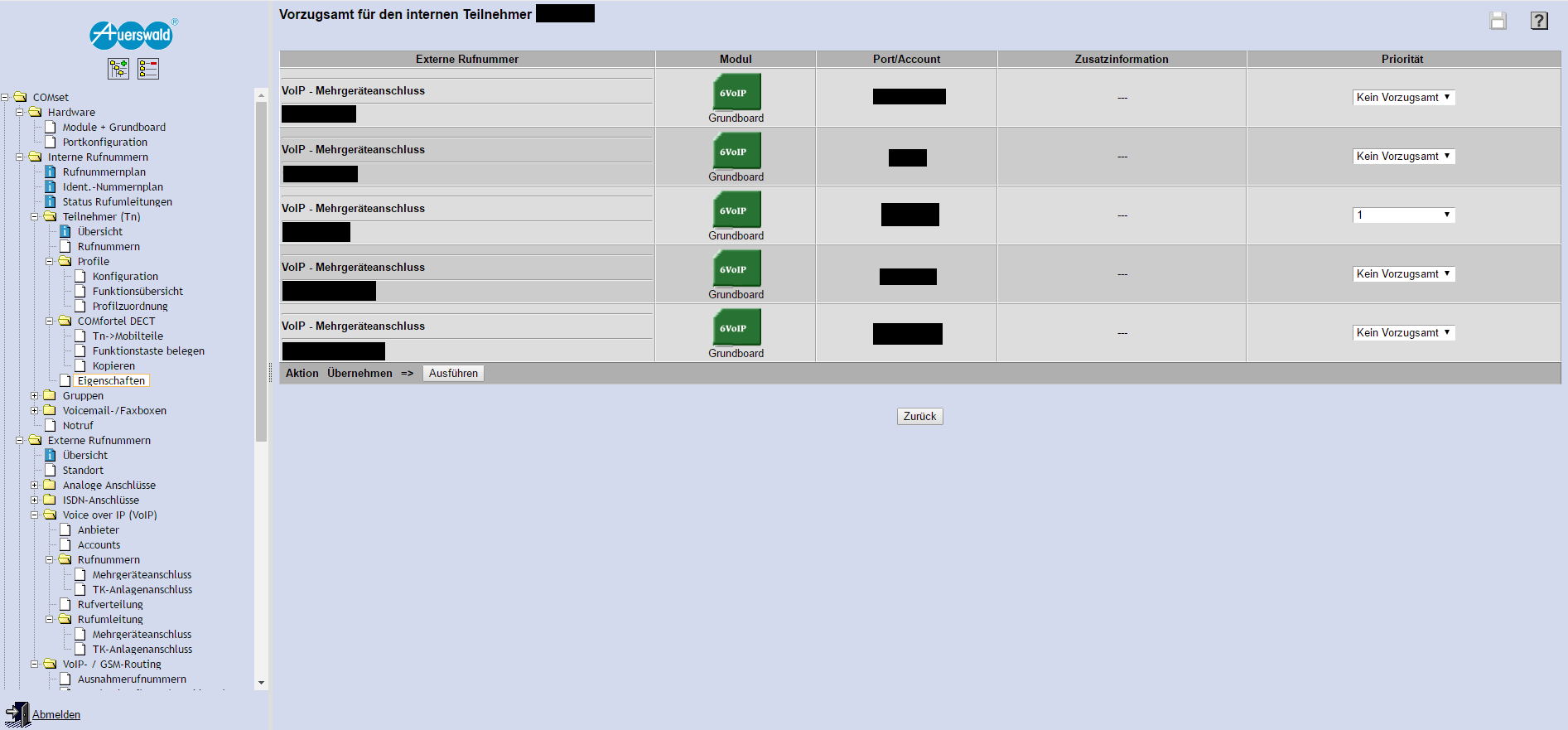
(Setting the preferred office)
On the page that opens, you can set priorities for individual outbound numbers (1 = highest priority). Simply enter a 1 for the desired number and leave the remaining numbers on “No preferred office”.
8. Done!
The configuration is now complete and all phones should be able to make calls successfully via VoIP. Finally, don’t forget to test each phone for functionality and verify both incoming and outgoing numbers.